

Available tools and resources for our webinars and on-demand training are highlighted below. Please submit a ticket via our contact form if you need additional assistance.
Recorded Video Accessibility Features
The video player fully supports keyboard navigation and works with popular screen readers and the latest up-to-date web browsers.For Apple and Windows users, video player works with assistive technology such as JAWS ® from Freedom Scientific. Mac (VoiceOver from Apple and Windows (NVDA screen reader from NV Access).
Audio Controls
Audio is fully controlled by the user via the player control bar. Audio may be paused, stopped, and muted.

Sound will not play unless it is initiated by the user.
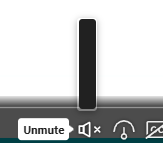
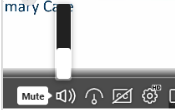
Umuted sound will display the volume level on the sound bar.
Captions
Each video has captions enabled. (English Only)
- Captions will remain off by default, but the viewer can turn them on any time.
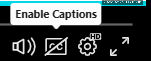
- Captions may be turned on by clicking on the closed caption "CC" box.
Advanced Captions
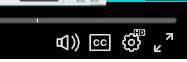
Choose between Easy Reading, High Contrast, or Night Mode. Click on the settings gear to access these options.
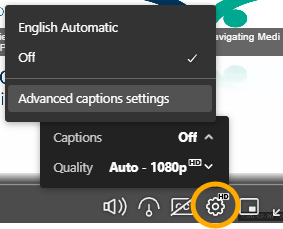
The advanced captions settings have preselected options or you may set custom captions.
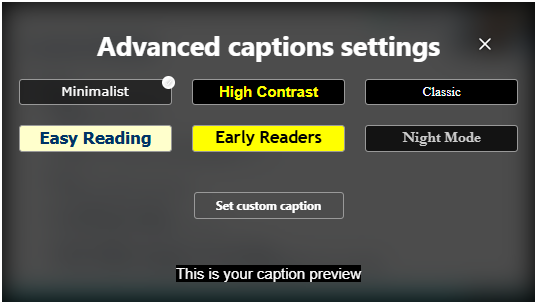
Custom Captions
Customize font type, color, size and more.
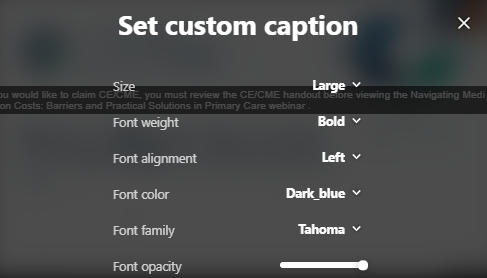
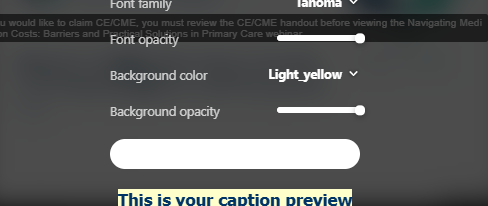
Several options allow changes to the background color and the opacity for the font and background.
Full Screen View
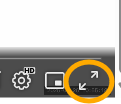
Click on the double arrow symbol to watch the video in full-screen mode.
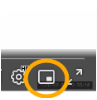
Picture in Picture (Popout Screen)
This feature allows users to watch the video and scroll the webpage without interrupting the viewing experience or background work.
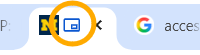
The blue icon on the browser tab below shows Picture in Picture Mode is Active.
The popout screen will appear to the bottom right, but it is moveable and adjustable.
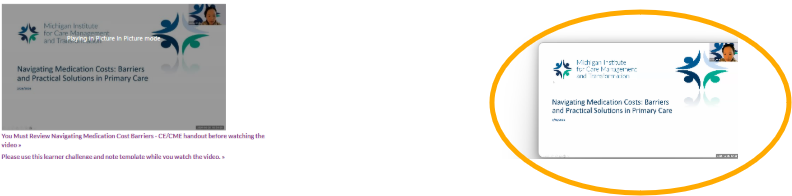
If a user has a disruption, such as an instant message or email, they can continue viewing the video and respond using different screens or programs. The instant message program can be used while the video is playing in the bottom-left corner.
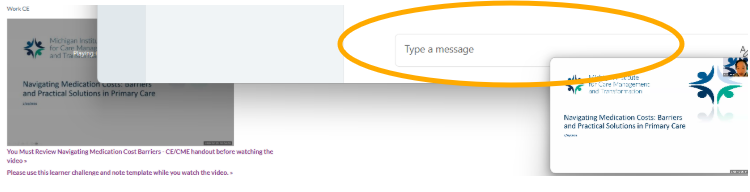
The popout screen has a limited amount of options. Viewers may still seek forward or backwards in 10 second increments. The pause and play button and progress bar are also available.
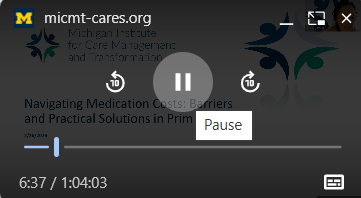
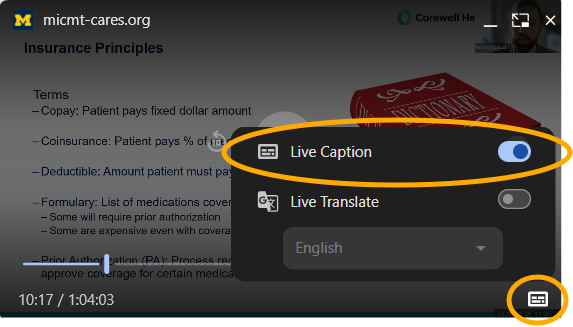
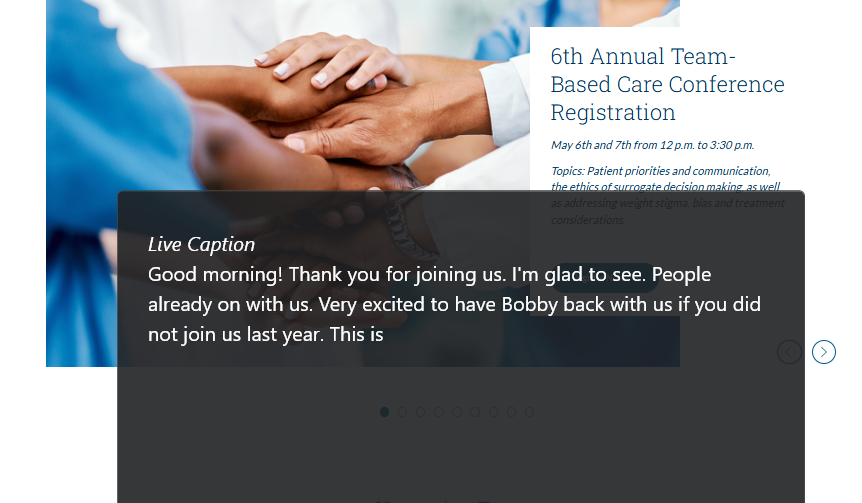
Picture in Picture Mode - Live Caption View
Click on the button on the bottom-right corner to access the live caption settings and turn it on or off by moving the slider.
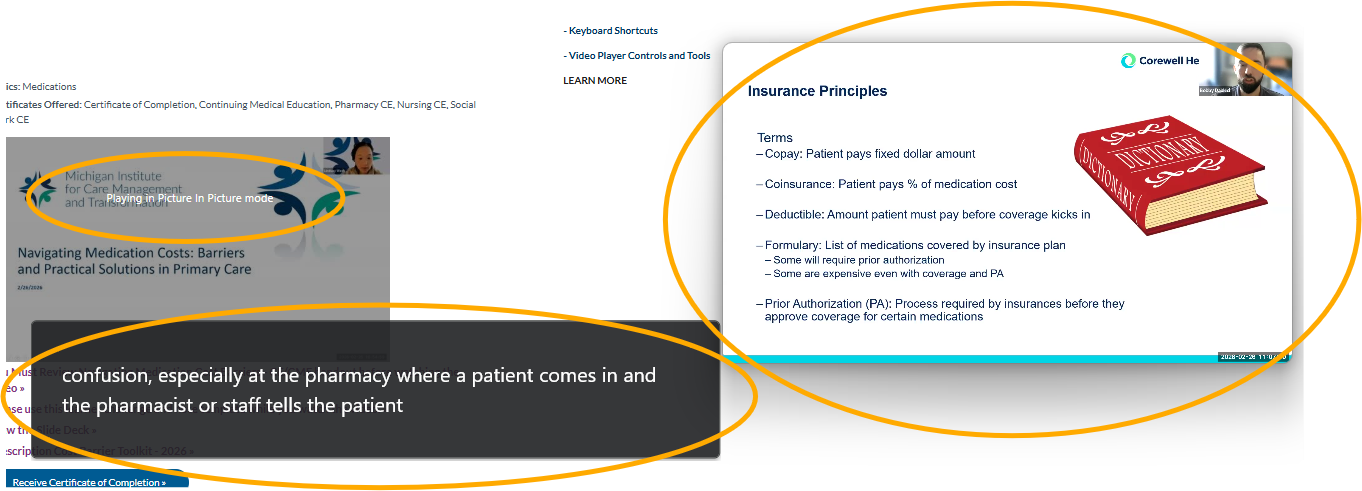
Picture in Picture Mode - Live Caption View (continued)
This shows the captions on a separate large window, which is also moveable and size adjustable.
- From left to right, the screenshot shows the original live video, which is dimmed and with the message "Playing in Picture in Picture Mode" displayed.
- Directly below original video is the adjustable closed caption overlay.
- The pop out video is to the right.
Pciture in Picture Live Caption View - Enlarged
Users can flip through different tabs while viewing the captions. The caption overlay has been enlarged and moved to the center of the screen.
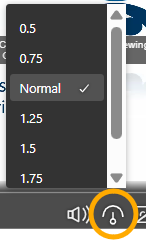
Playback Speed
Click on the playback speed button to view the menu options and adjust the video's speed.
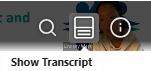
Transcripts
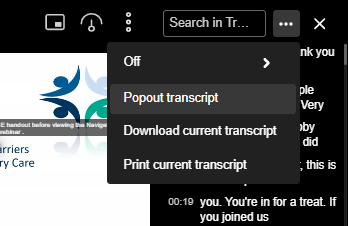
Print, popout on separate screen, download, search, and jump to video timestamp via timestamp screen. (English Only)
- Click on the transcript icon on the transcript toolbar on the top-right of the video. Use the magnifying glass to searh for a word or phrase.
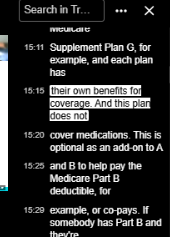
- Clicking on the transcript icon will display the transcripts to the right of the video. The transcript screen allows you to search for words and numbers. Clicking on the trascript text allows you to jump to that place within the video.
- Hover over the 3 vertical dots to reveal more transcript options.

- This menu reveals 3 options to popout the transcripts into a separate window, print, or download.
PLEASE NOTE: The transcription download does not have timestamps.
Keyboard Navigation Shortcuts
Basic Keyboard Navigation and Guide
- Tab - navigate forward
- Shift + Tab - navigate backward
- Enter - activate the link
- Enter or Spacebar - activate the button
- Spacebar - check/uncheck a checkbox
- Esc - close dialogs and exit full screen view
Additional keyboard navigation shorcuts are available on Kaltura's Keyboard Navigation Guide.
Video Player Control and Progress Bar Tools (Bottom)
Player Control Bar Tools
Follow the links below for labels and details for each tool on the control and progress bar.

- Control Bar Tools (Diagram and Explanation)
Video Settings on Bottom Control Bar
View Kaltura's Player Left Controls Guide to review details for:
- Play/Pause
- Seek forward/Seek backward (10 second increments)
- Time Indicator
View Kaltura's Player Right Controls Guide to review details for:
- Audio adjustment
- Captions (on/off)
- Advanced Captions
- Video Resolution (Quality)
- Playback Speed
- Full Screen
- Picture in Picture (Watch video while scrolling the webpage)
Looking for Digital Accessibility - Live Webinar Resources?
Visit the Digital Accessibility - Live Webinar Resources Page